
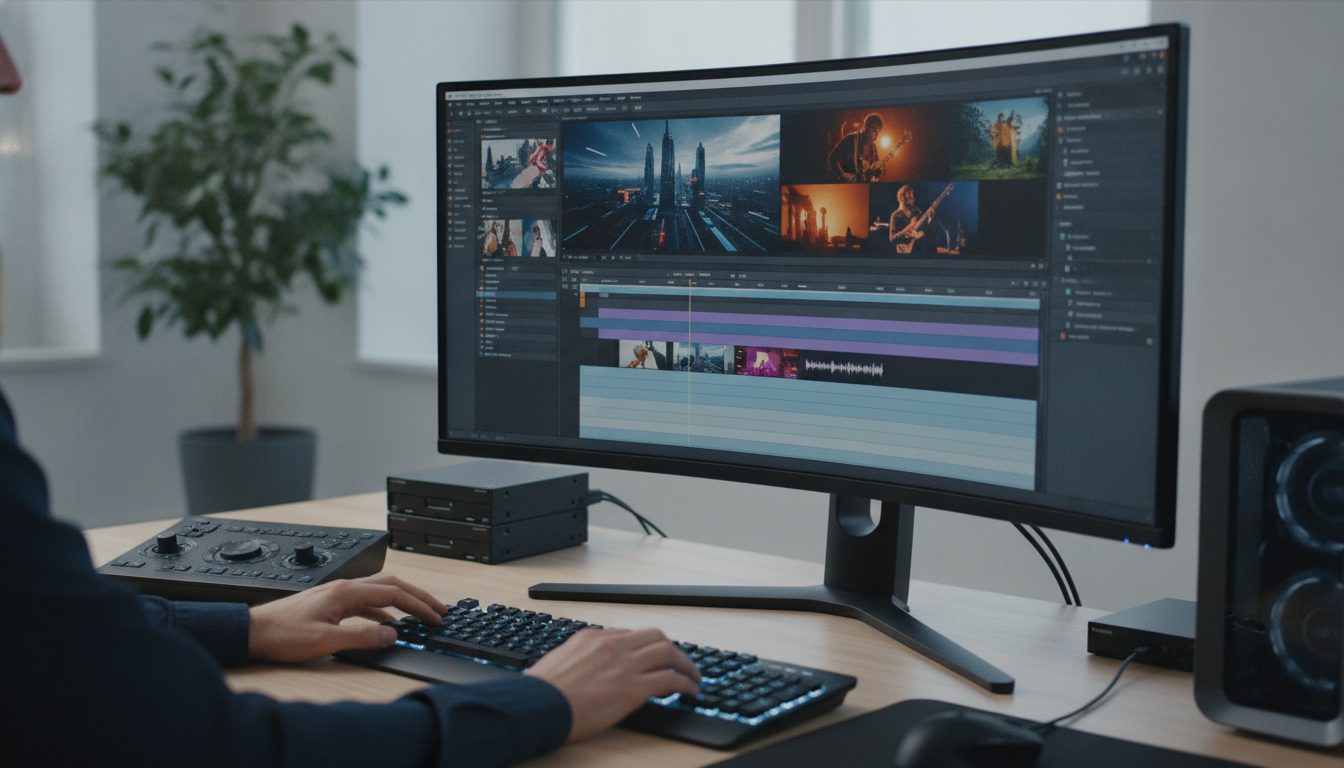
Windows Video Editing in 2026: What’s Changed?
If you’ve been tracking what’s happening in Windows video editing, Descript just dropped an exhaustive review that actually cuts through the noise. This rundown—published by the Descript Team on October 7, 2026—doesn’t get lost in hype. Instead, it lays out how editing tools have moved forward and what you can realistically expect, whether you’re after free basics or you’re ready to invest.
The big story? Windows 11 comes with Clipchamp baked in, shifting the entry-level expectations and putting pressure on everyone else to step up with more value, flexibility, or genuinely advanced features.
What’s New: Concrete Features and Comparisons
Descript’s review doesn’t just list tools—it actually compares how Windows editors stack up, from the built-in apps to the heavy hitters. Here’s what stands out:
- Clipchamp: With Windows 11, you get Clipchamp out of the box. Its free plan does 1080p exports watermark-free, focusing on speed for things like trims, text overlays, or piecing clips together. That’s perfect if you’re making internal training videos or quick social posts. Still on Windows 10? You can install Clipchamp separately. Just watch out—premium stock or 4K exports will put you behind a paywall. The interface is built for simplicity, favoring users who want results fast over endless options.
- DaVinci Resolve: Even the free version lets you work up to Ultra HD at 60 fps, and the color correction is as serious as you’d expect. This is a go-to for YouTube creators or anyone who wants to dial in every detail. If you need the advanced post-production toys, the Studio edition is a $295 one-off cost. Both variants demand real horsepower—16 GB RAM and a solid GPU are baseline if you want smooth editing, especially with effects or big files.
- CapCut: If your PC is modest, CapCut’s low resource needs (4 GB RAM; Intel HD Graphics 4000 or better) keep things accessible. Templates, effects, captions, and a simple timeline make it a good fit for TikTok or Instagram content. Be aware: watermarks depend on what assets or export settings you pick—premium templates might force you to upgrade. CapCut is built for speed, not for granular control, so it’s a smart pick for marketers or creators racing the clock.
- Shotcut and OpenShot: Both are open-source, subscription-free, and watermark-free. Shotcut gives you more timeline flexibility and format support, ideal if you want to avoid getting locked into a proprietary ecosystem. It’s powerful for its class, but there’s a learning curve. Shotcut recommends 8 GB RAM for HD work, and it uses Direct3D 11 graphics. OpenShot is easier to get started with, requiring just 4 GB RAM and no need for a dedicated GPU—a relief for anyone running on older hardware. Both are good bets for students, hobbyists, or pros who need a no-strings-attached editor for standard projects.
- Adobe Premiere: At $22.99/month (annual plan, billed monthly), Premiere is still the industry heavyweight. There’s no real free tier, just a seven-day trial. Hardware demands are high—8 GB RAM and 4 GB GPU memory at a minimum, with more needed for 4K. Premiere stays current with Windows 11 and still dominates among agencies and production teams who want advanced effects, deep plugin support, and collaborative cloud workflows.
- Descript: Tailored for podcasts and talking-heads, Descript’s transcript-based editing and AI features are its calling cards. You get automatic filler word removal, one-click background noise cleanup, and “AI Actions” that spin recordings into blog posts, social snippets, or summaries. The free plan adds a watermark, but paid tiers (from $16/person/month billed annually) drop it. Descript’s remote recording lets you bring in up to 10 guests in 4K, making distributed interviews straightforward. A huge stock library (videos, images, music, GIFs) is built-in, so you’re not forced to hunt content elsewhere.
One thing Descript’s review nails: hardware minimums. Most editors need at least 8 GB RAM for HD work, but real-world performance depends on your footage, effects, drivers, and disk space. Also, export limits, watermarks, and features can shift based on your subscription, region, or asset choices—so don’t just trust the marketing page. Always double-check before you commit to a tool.
Why This Matters for Businesses and Creators
Right now, the playing field has changed. Clipchamp ships with Windows 11, so every other editing tool has to prove it’s worth your time—and your money. For you, that means balancing ease of use, feature set, and export quality against cost and how steep the learning curve looks.
Let’s say you run a small business and need to make training videos. Clipchamp will get you started, but if you want advanced color grading or effects, DaVinci Resolve starts to shine—if your hardware is up to it. Podcasters and marketers may find Descript’s transcript editing and AI-driven repurposing a major time-saver.
Its AI Actions can turn one recording into summaries, social clips, or blog-ready text, cutting down on manual editing and copywriting.
Bottom line: the “best” editor depends on your project, your PC, and how much you’re willing to pay for premium tools. Free editors pack a punch, but paid plans deliver real workflow gains—especially if you’re delivering to clients or running a team. For example, Descript’s Hobbyist plan removes watermarks and bumps up export quality, which matters if you’re producing branded content.
DaVinci Resolve Studio’s one-time price could appeal if you want pro features without a subscription.
How to Choose and Use the Right Editor
Here’s how to get the most mileage from your Windows video editing setup in 2026:
- Assess Your Hardware: Know your RAM, GPU, and storage. Most editors want 8–16 GB RAM for reliable HD/4K work. On an older machine? Lean into lighter editors like OpenShot or CapCut, and use proxy files or lower preview resolutions to keep things smooth.
- Define Your Project Needs: Are you just trimming clips, making podcasts, or editing multi-layer video? Match your tool to your task. Descript is best for spoken-word and quick repurposing; DaVinci Resolve, for color grading and complex effects.
- Test Free Editions: Start with Clipchamp, Shotcut, or OpenShot to see if you like the workflow and export quality before spending. Always check watermark and export rules before you deliver anything to a client.
- Evaluate Paid Features: Need watermark-free exports, advanced effects, or AI tools? Compare pricing and trials for Descript, Premiere, or DaVinci Resolve Studio. Decide whether a subscription or one-time buy fits your team and how often you edit.
- Consider AI Capabilities: Descript’s AI Actions and filler word removal can slash your editing time, especially for business communications. If you’re regularly turning long videos into multiple formats, these tools can streamline the process and help you scale content marketing without extra manual work.
Descript’s guide also stresses this: always check export and watermark policies for each tool before you lock in a workflow. If you’re producing branded or sensitive content, make sure your exports are watermark-free and you’re following licensing rules for stock assets.
My Take: Useful Advances, but Not One-Size-Fits-All
What catches my eye in Descript’s 2026 lineup is the widening gap between entry-level and pro editing. With Clipchamp bundled in Windows 11, basic video projects are easier than ever—great news if you’re a small business or educator. But if you need anything beyond simple edits, you’ll hit the ceiling with free tools fast. Advanced effects or multi-track work almost always push you toward paid apps.
Descript’s transcript-based editing and AI are genuinely useful if you’re focused on podcasts, marketing, or any spoken content. Removing filler words and spinning videos into social posts or blogs is a real productivity boost. That said, these AI bonuses aren’t free, and they’re not a fit for everyone—creators who want tight timeline control or cinematic polish will still need tools like DaVinci Resolve or Premiere, provided their hardware can keep up.
Hardware demands for DaVinci Resolve and Premiere aren’t trivial. If your PC is aging, open-source options like Shotcut or OpenShot may be your best bet, even if they lack the slickness of paid suites. And don’t overlook how changing software versions or hardware support can affect your workflow—future Windows updates or GPU drivers might throw a wrench into your setup.
It’s also worth noting: Descript’s review looks at published features and prices as of September 2026. Those details can shift, so check the latest specs and terms before you buy or commit. If you’re managing a team or juggling different editors, keeping your software and hardware documentation up to date will help avoid surprises down the road.
The Bottom Line
Descript’s 2026 review makes it plain: there’s no “best” Windows video editor, just the one that fits your needs, hardware, and budget. Whether you’re shooting quick how-tos or full productions, picking the right tool saves you time and raises your game. But always read the fine print, test your workflow, and choose an editor that lines up with your actual business goals.
If you’re scaling up, blending AI-powered and classic editors can make your process smoother and your output stronger.
For more details and the full comparison table, see the official Descript article: Best Video Editing Software for Windows 2026.